You can export the contents of an
The export includes a visual representation of the relationship map, as shown in the example below.
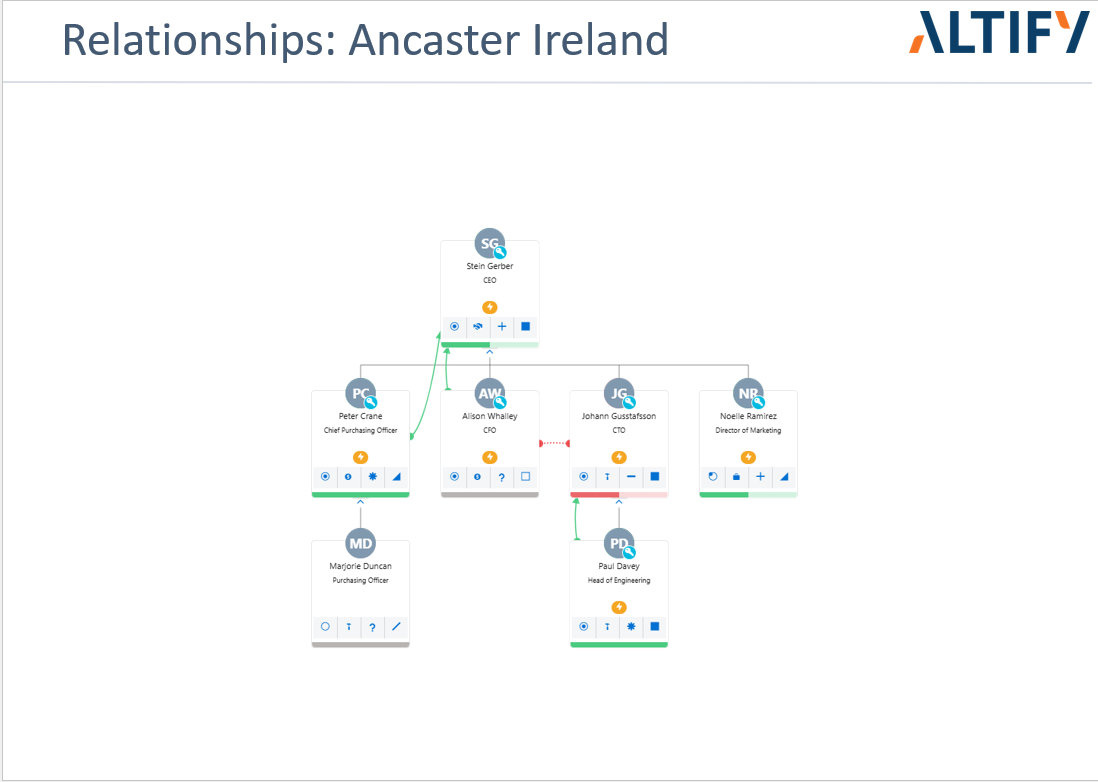
By default, a maximum of 35 contacts are displayed (15 horizontal x 7 vertical). This is the maximum recommended by Altify but those limits can be updated by your administrator. If your map exceeds the specified limits, only tabular relationship map data will be displayed and no image is generated in the PowerPoint file. (You are notified if your map exceeds the contact limits).
Tip: You can apply relationship map filters so that the number of contacts displayed is within the specified limits.
To generate the PowerPoint file:
- Open the
-
Click the Exports button the in top right of the page and select PPT Export - as shown in the example below.
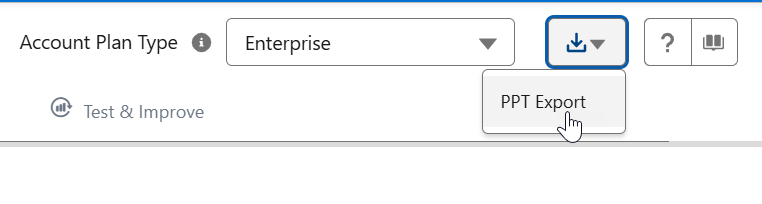
- When the PowerPoint export file is ready, click the link Click to save.
Exporting specific sections of an account's insight map
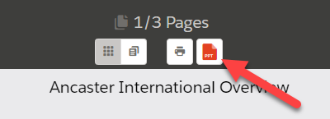
To generate a PPT of a specific section in an account's insight map, you need to access the insight map in slideshow mode.
In this mode, go to the relevant section and click the PPT icon (as shown below) to generate a PPT file of that section of the insight map.
PowerPoint Export File Name Format
Altify names PowerPoint export files as follows:
- For PowerPoint exports of an account plan, the format of the PowerPoint file name is 'AP_[Account Name].pptx'
-
For PowerPoint exports of an insight map section, the format of the PowerPoint file name is 'InsightMap_[Insight Map Section Name].pptx'
Configuring PowerPoint export options (administration)
. An administrator can update stylistic elements such as the font color.
For more information, please talk to your Altify Administrator.